Invoices 
Manage invoices
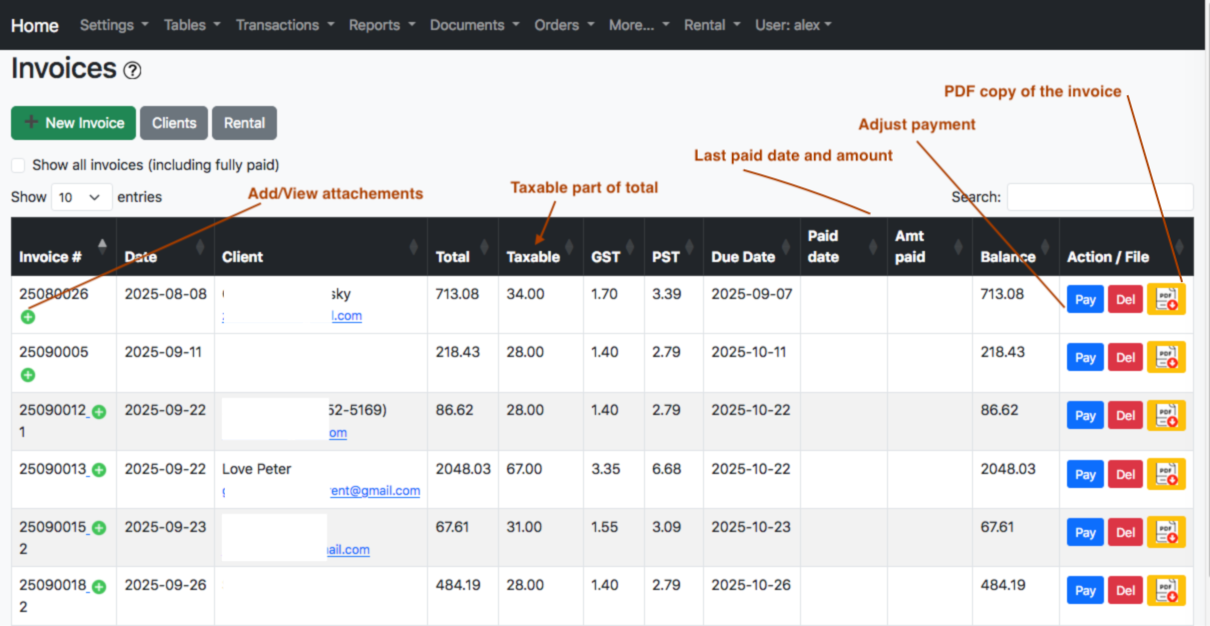
Invoice screen shows the list of invoices produced for tickets and other expenses (refueul etc.).
You can choose how many lines to see on the page.
The invoice line conatins a Balance column. Only Non-close balances are shown!
Please use SEARCH to locate your invoice by Client, Invoice No, etc.
Register a payment
When you get a payment, you have to register it.
To register the payment please click on PAYMENT button then enter the payment date and amount paid.
The balance will be adjusted.
You may also make a Note, just add a remark on the payment screen.
If the invoice contains a note, it could be seen while moving mouse to the Invoice Number.
PDF copy
To see the details of the invoice please click on PDF-icon, if any: 
Client`s email address allows to invoke the mailer and send a message to the client.
If you want to attach the PDF-copy to you email, please download it first.
Attach files
The number after a small plus sign on the first column shows the attached files if any.
You can attach files to invoice: click on + (plus) near the Invoice Number.
Attachement may be any jpeg/png or pdf file. Check the message while attaching, the file can not be too large!
Example of the Invoice screen