Tickets and Tolls
How to proceed with tickets
All incoming tickets must be processed with the following three steps: Payment, Invoicing and Saving in Data Base.
The old tickets have to be processed with TURO-Help procedure. We call it Escalation
Main tickets screen
Important! If you don't see your ticket, please try to expand the period. Your ticket issue date might be too old for the default six months interval.
The rows in the table are sorted by the date of payment, i.e. the last paid tickets will be on the top.
You can change the order by clicking on the arrow in the table header.
By clicking on the (+) you can add ticker history, and a new photo.
Below is an example of the tickets screen:
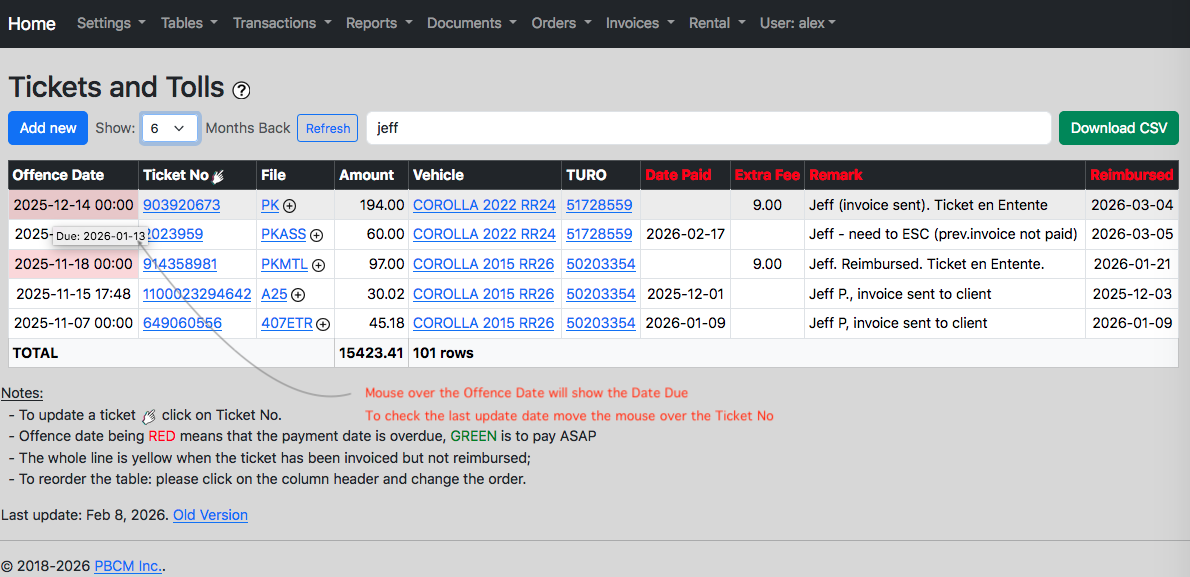
NEW!You can use the Download CSV button for working wtith tickes offline.
Mini Report and download CVS
To get a brief report or download csv-file:
Yo can email report using your default mailer, or copy it to the clipboard.
Inquire and edit tickets
NEW! You can edit last four columns (Date paid, Extra fee, Remark and Reimbursed date) directly on the screen without opening the ticket.
Processing Tickets
When processing tickets, the following order is recommended:
- (1) Find out a vehicle and reservation, if any;
- (2) Scan and save your ticket;
- (3) Do a Payment;
- (4) Invoicing client;
- (5) In some cases you may need an escalation.
Note: You can do a payment first, and save the ticket after.
Step 1. Find a vehicle and reservation number
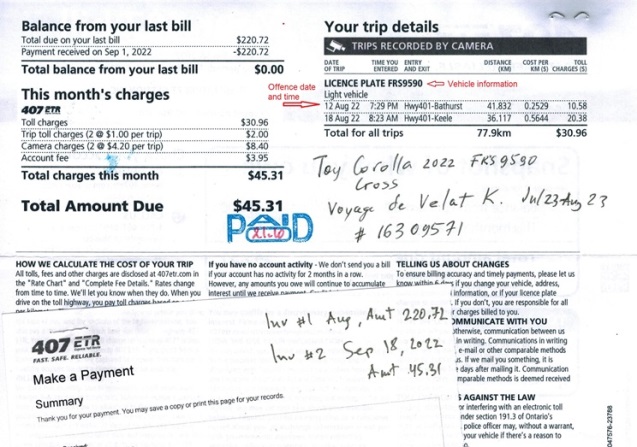
Depending on the ticket, the information of the vehicle you see might be different. In most of cases you will see the PLATE NO on the bill. Check the Vehicles table (type PLATE in the search), find out the Make/Model and Year. Record this information on the page of the bill. Use the most informative page, the one with the date and time of the offence, or Toll camera record.
Find a reservation:
Scan the bill as image file.
Please note that PDF files are not accepted for uploading by TURO.
You may rename the file something like "A25-20201011-Mazda-paid 20201220.jpg".
Bellow is an example of the bill with notes.
Step 2. Make a Payment
To make a payment please follow the appropriate link:
 A25 Bridge (Pont a péage):
https://www.a25csc.com/facture/
A25 Bridge (Pont a péage):
https://www.a25csc.com/facture/
 Montreal tickets: https://servicesenligne2.ville.montreal.qc.ca/sel/constats/
 Cour Municipale de Montreal: https://montreal.ca/unites/cour-municipale
 Ottawa parking: https://www.ottawa.ca/poa
 Tickets from Ontario and Québec province small towns: https://www.paietickets.ca/start $7 Fee!
 Ontario 407ETR: https://407etr.com/en
 Ville de Quebec: https://www.amendes.qc.ca
 Quebec, Short Refno: Ville de Quebec, infractions de neige
* Please double-check if the transaction was successful! You can pay with Credit Card by phone: (418) 641-6179
 Sherbrooke:
https://sherbrooke.ca/fr/services-a-la-population/cour-municipale/payer-un-constat
Sherbrooke:
https://sherbrooke.ca/fr/services-a-la-population/cour-municipale/payer-un-constat
 Longueuil:
https://longueuil.quebec/fr/services/cour-municipale/paiement
Longueuil:
https://longueuil.quebec/fr/services/cour-municipale/paiement
 Ville Saint-Jérôme: https://www.vsj.ca/cour-municipale/
 Laval: https://ville.laval.qc.ca/constats
 TOLLS BY MAIL NYNJ: https://tollsbymailny.com
 PAY BY PLATE MA: https://www.ezdrivema.com/paybyplatema
 Violations: https://e-zpass.com/payviolation
 Partout au Québec: https://constats-express.com, Rimouski, Blainville etc.
 PAM Collection: https://www.pamcollections.com
For other exotic tickets please follow the particular instructions.
Step 3. Invoicing client
Step 4. Saving ticket.
All tickets must be saved in the Data Base for reconciling and accounting purposes.
At this step, if you are on computer, you must have a scanned document.
If you work with smart phone or tablet, you can take a picture with your camera. Please note that you must save your bail in JPEG format.
From the System Main menu go to -> Tickets.
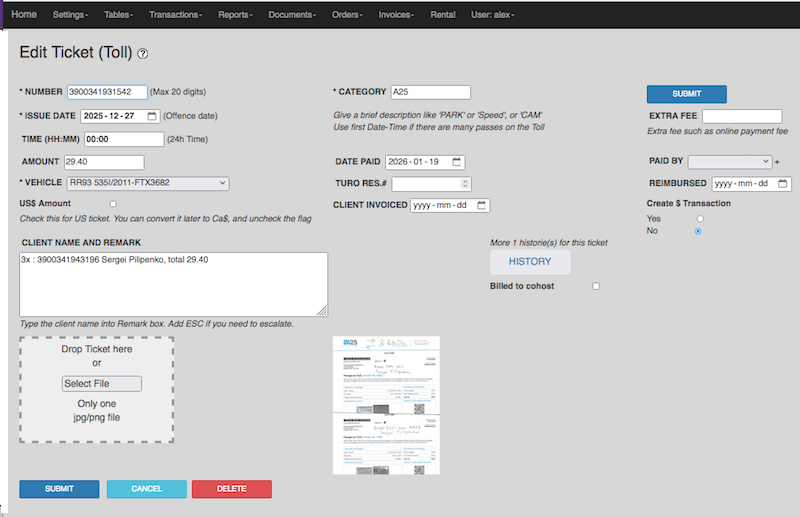
For most of tickets the Ticket No is unique. All 407ETR tickets came in with the same Account Number. Please use this account no as a Ticket No.
If the customer has already paid this ticket, or it's your own ticket, then select "No".
Reconciliation
The reimbursed tickets must be reconciled.
This is important because the amount paid does not include taxes.
If you missed the reconciliation, you will loose your income.
Please use the search table to find a ticket.
By default the search interval is four months, and you can change it.
Once you found a ticket in the table, please click the link in the TicketNo column. You will be redirected to the edit form.
Just fill up the case "REIMBURSED DATE" and click "SUBMIT".
You can change the reimbursed date directly on the table.
Note:
While you create a new ticket, a dollar transaction will be created. Tickets issued on more than 90 days should be escalated.
Escalation is a special procedure, provided by TURO Support.
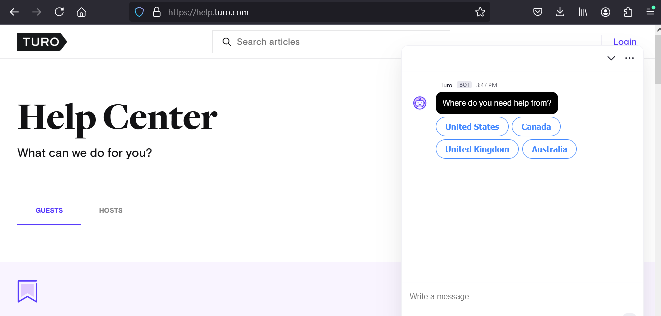
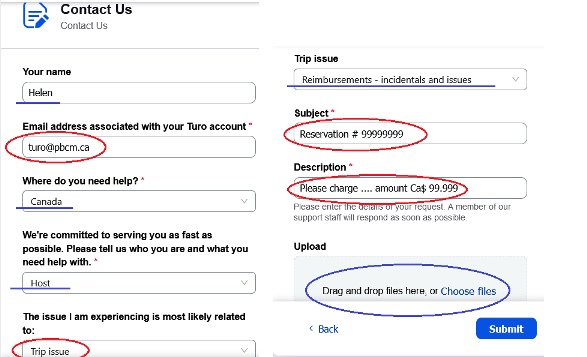
To start the escalation please go to the TURO Help Center: help.turo.com, and start with Contact Us. We will see something like this:
The support center will offer you a help to create the invoice. This is not your case, and you have to follow up to the question: Other common issues.
Please note that the questions migth be a litle different from shown above.
After that you will see the button Contact Support, and this is what you really need!
You have to attach a file(s) with the tickets (toll) information. Files must be in JPEG or PNG format.
Please double check everything: the email address must be our registration address!
Click the SUBMIT button.
The $ transaction is used for accounting purposes, and it can not be edited.
If you edit a ticket, please use "No" button and bypass the create new transaction.
You should avoid changing the ticket amount while you do Edit.
Escalation